Radiccio 1.1: More ways to open files, and more customization
Wednesday, January 7, 2026
Happy new year! We have a lot of plans for Radiccio this year. Let’s get started with some new features.
Icons in sidebar
In this update, you’ll notice your sources in the sidebar now have icons. By default, you’ll see – well, the defaults. To help you more easily see your sources at a glance, you can customize these icons – this is a nice way to make your collection in Radiccio feel more like it’s yours. You can choose a new icon in File > Source Settings.

We have hand-picked a variety of icons from Apple’s beautiful SF Symbols icon set. If none of them are quite right, you can also provide your own, in the form of a transparent PNG file. Radiccio will even color-match it to fit right in with the rest of the app.

If you’re not really in the mood to choose icons for your sources, or if you would simply prefer a more minimalist look, no worries – you can easily turn the sidebar icons off in the View menu, and then the sidebar will revert to its previous, text-only design.

Did you know? If you want an even more compact layout, you can also hide the sidebar entirely. From the View menu, choose Hide Sidebar. This is especially useful if you only have one source. If you have multiple sources, you can still switch between them using the Source menu in the menubar.
Open files from Finder
Now in Radiccio, you can open and play audio files and playlists from Finder, without creating a source first.
Rationale
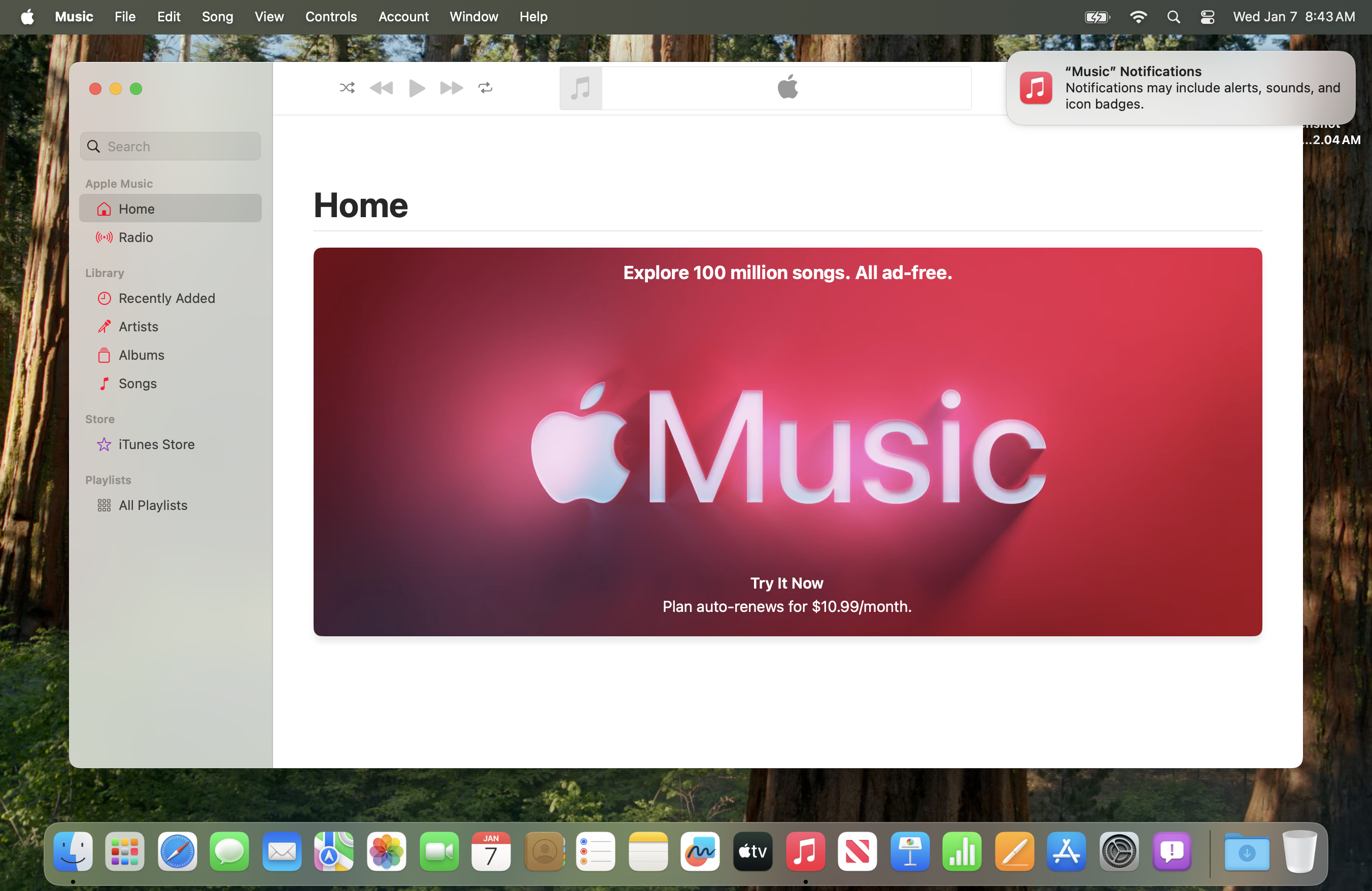
I’ve always thought that a computer should provide, at a basic level, a quick and easy way to listen to audio files. With a fresh install of macOS, your options are:
- QuickTime Player – can only play one file at a time.
- Music.app (formerly known as iTunes) – automatically “imports” any files you open into your app-managed music library, whether you want to or not
But sometimes I don’t want the commitment of building a library; sometimes I just want to listen to a few files, without planning to keep those files forever and ever.
I’ve also heard feedback from some people who are simply more comfortable working with their files in the filesystem – that’s what it’s for, after all – and would prefer to initiate playback from Finder rather than a music app.
I think this is essential functionality that should be available to everyone who uses a Mac. That’s why this new feature is free to all users. My intention is to make the free version of Radiccio something that feels like it could have been included with the Mac – a utility that lets you do something that any computer should be able to do, out of the box. (And perhaps we could do without the ads.)
How to open files
You can open files in any of the following ways:
- In Radiccio, choose File > Open (or type ⌘O)
- Drag-and-drop files onto Radiccio’s app icon in the Dock
- Control-click (or right-click) a file in Finder and choose Open With > Radiccio
You can also optionally set Radiccio to be the default app for audio files and playlists. (This is strictly opt-in; it won’t happen without explicit action by you, and we will never nag or prompt you.) If you do this, files will open in Radiccio when you double-click them in Finder:
- In Finder, find a audio file and choose File > Get Info
- In the “Open With:” drop-down, select Radiccio
- Click “Change All”
- Repeat these steps for other types of audio files that you regularly open
Working with open files
Files opened this way will appear in Radiccio in a new sidebar section titled “Open Files”.
Unlike other sources, open files have a close button to the right side. (You can also type ⌘W to close a group of files.)

Individual files are grouped by the folder they are in. The folder’s name appears in the sidebar. If you open multiple files in the same folder, they will share the same sidebar entry. Note that any other files that may be in that folder will not appear; only the specific files you have opened will appear in Radiccio.
You can also open an entire folder at a time, by using File > Open and selecting a folder instead of individual files. In this case, all of the files in that folder will be shown (if they are supported file formats).
Finally, you can also open playlists in M3U format as well. M3U is a de-facto standard playlist format that many other apps use, so you can share playlists between Radiccio and your other music apps. The playlist will appear as its own sidebar entry.
Open files will stay open until you close them, or until Radiccio is quit. If you want the files to remain in the sidebar the next time you launch Radiccio, you can add an “On My Mac” source.
With this new feature in Radiccio, you can listen to audio files in an entirely ad-hoc workflow. You can open files, folders and playlists, and add them to the queue for playback. And remember that you can save the contents of the queue as a playlist, and then open that playlist file to listen to again later. And you can do this all without creating any sources. You can even switch back and forth between Radiccio and other music apps that support the M3U format.
A note about security
When opening a playlist, you may see a button that says “Allow Access to X Folders” (where X is a number). This only affects playlists, not folders or audio files.

This is due to macOS sandboxing, which is a security measure that Apple put in place to protect your data. Very briefly: This means that, except for those specific files which the user selected to open (either in Finder or in the “File Open” dialog), Radiccio can’t access any of your files. In general, that’s a good thing that helps keep you safe. But in the specific case of playlists, it means Radiccio can access the the individual playlist file you opened… but not the audio files that the playlist references, because you technically didn’t open those directly.
Our solution to this is the “Allow Access” button, which is an extra step before you can start playback. When you click it, you will see a series of “File Open” dialog prompts. These will already be pointing at the correct folders, so all you need to do is click “Open” each time. In doing so, you are telling macOS that Radiccio has permission to access those folders and their contents. After that, you can play the music!
Don’t worry – after you have done this for a particular playlist, you shouldn’t have to do it again, even if you open the same playlist again later.
Other changes in this version
- Improved error messages for some situations, mostly involving On My Mac + Librarian sources on external or network drives that have become disconnected.
Coming up next…
That’s all for now, but there’s more on the way! We can’t wait to show you. Stay tuned!